Image Gallery
A numbered, guided tour through SEO Vein Finder — every screen, in the order you'll meet it.
- 0 · part 1
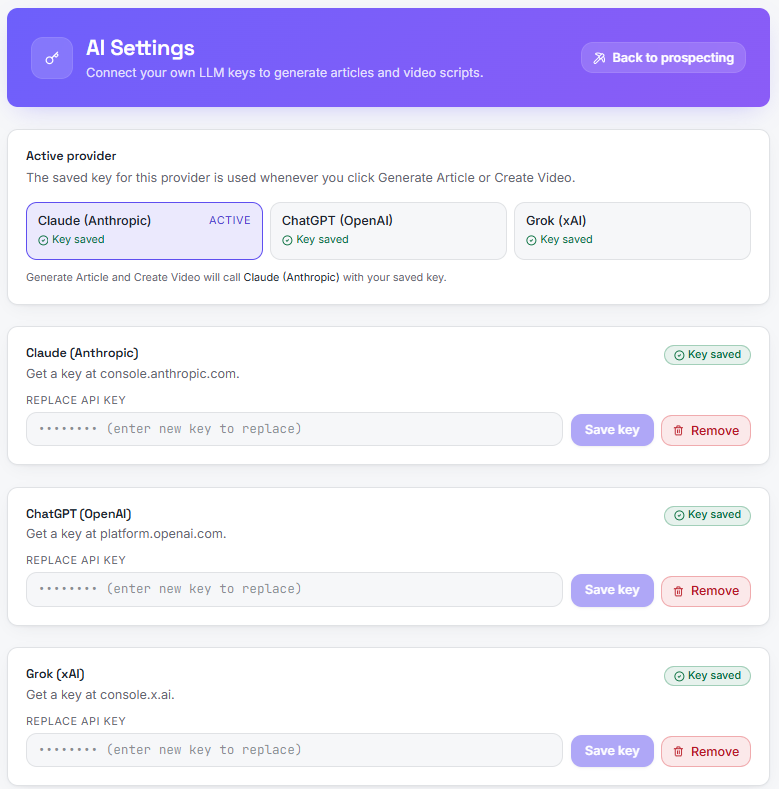
AI Settings — bring your own LLM keys
The AI Settings screen is where you connect the writing engines. Pick an active provider — Claude (Anthropic), ChatGPT (OpenAI), or Grok (xAI) — and that provider's saved key is used whenever you click Generate Article or Create Video. Each provider card shows a "Key saved" badge, where to get a key, and Save / Remove controls so you can rotate keys anytime. Keys are stored encrypted and are never sent back to your browser.
- 0 · part 2
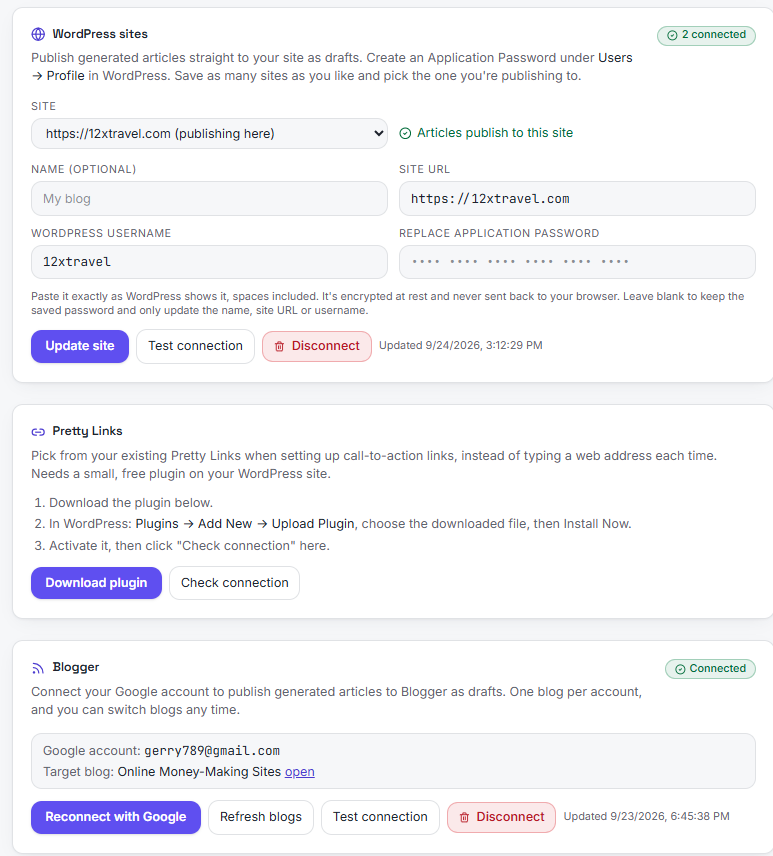
AI Settings — publishing connections
The same settings page also hosts your publishing connections. WordPress sites are added with a username and Application Password (paste it exactly as WordPress shows it — it's encrypted at rest), and the selected site is marked "Articles publish to this site." The Pretty Links section lets you download the free bridge plugin and verify the connection so call-to-action links can be picked from your existing Pretty Links. Blogger connects through your Google account, one blog per account, with reconnect, refresh, test, and disconnect controls.
- 0 · part 3
Not sure what to research? — free niche ideas
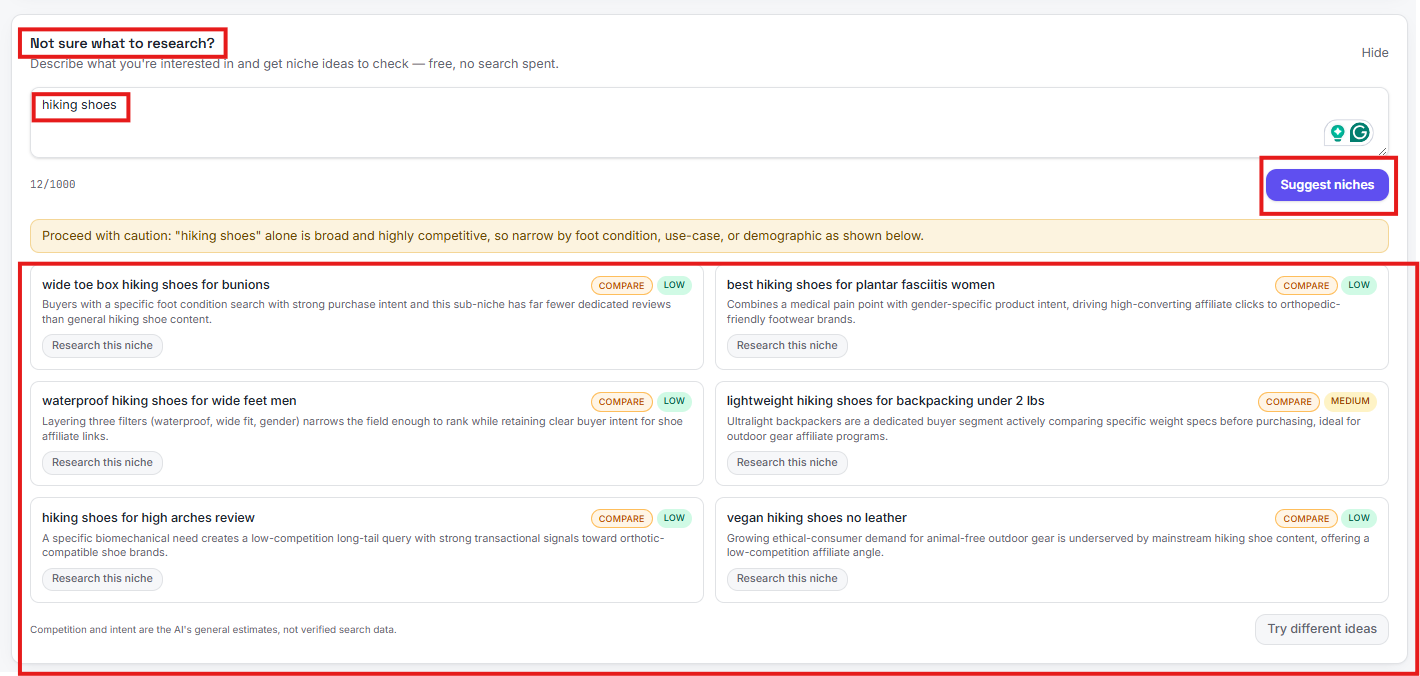
Stuck on what to search? Describe what you're interested in — here "hiking shoes" — and click Suggest niches to get free niche ideas with no search spent. When an idea is broad and highly competitive, a caution banner says so and the suggestions narrow it instead: by foot condition, use-case, or demographic. Each idea card shows the niche keyword, its intent badge (Compare, Ready to buy), the AI's competition estimate (Low, Medium), a short reason it could work, and a Research this niche button that fills the search form. Not a verified search — just a starting point, and Try different ideas regenerates the list.
- 1
Enter a search keyword term
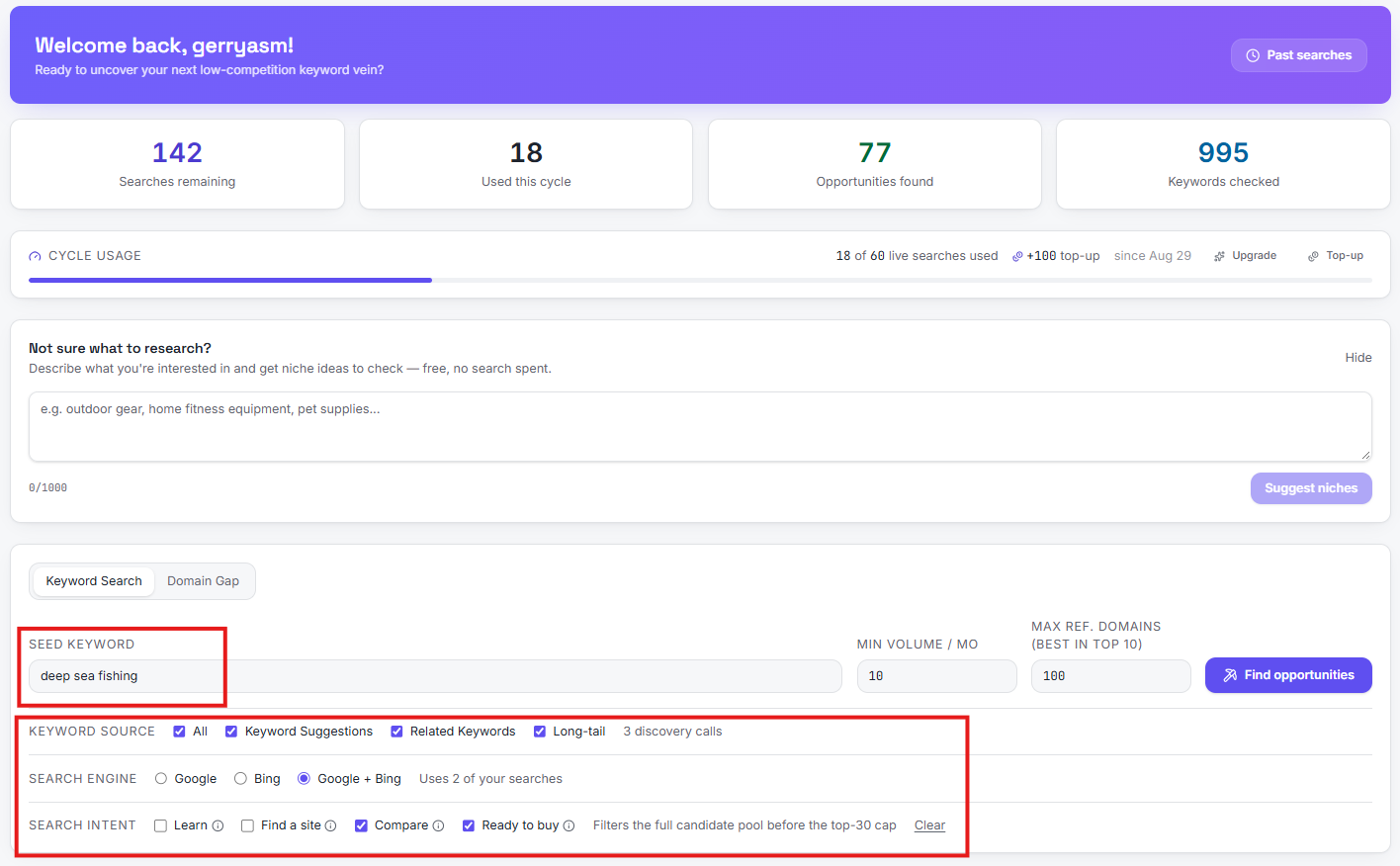
The prospecting dashboard. A welcome header with your usage at a glance — searches remaining, used this cycle, opportunities found, and keywords checked — plus a cycle-usage bar with top-up and upgrade shortcuts. Not sure what to research? Describe your interest and get free niche ideas with no search spent. The search form itself is highlighted: enter a seed keyword, set a minimum monthly volume and a maximum referring-domains cap, choose your keyword sources (Keyword Suggestions, Related Keywords, Long-tail), pick Google, Bing, or both, and filter by search intent (Learn, Find a site, Compare, Ready to buy) before the top-30 cap is applied.
- 2
Results and the prospecting map
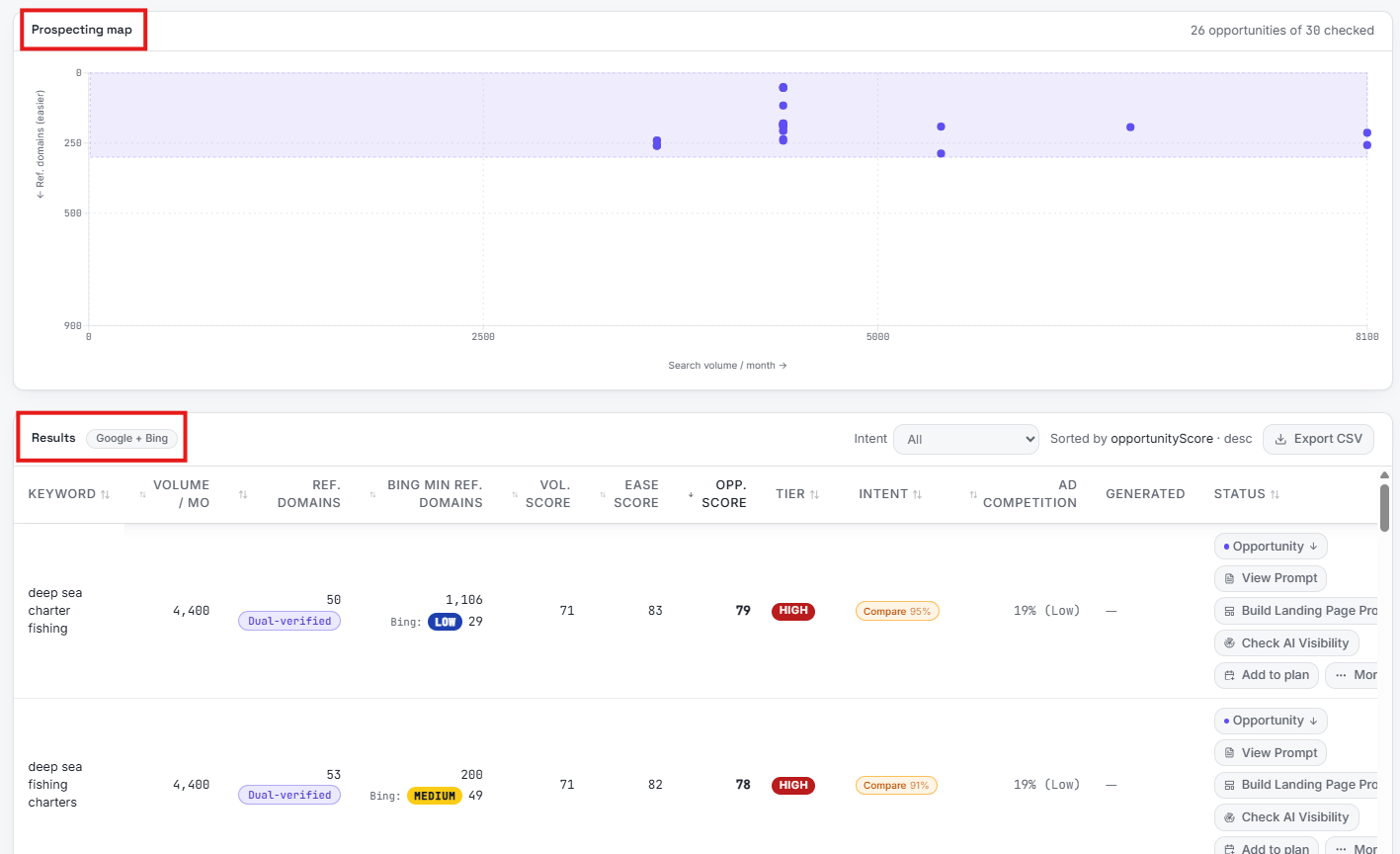
Every run gets two views. The prospecting map plots each checked keyword by search volume (x-axis) and referring domains (y-axis, easier at the top), so low-competition veins are visually obvious inside the shaded opportunity band. Below it, the results table carries the full scoring pipeline: Google and Bing referring domains side by side, volume score, ease score, and the combined opportunity score with its tier. Each row exposes the actions that matter — View Prompt, Build Landing Page, Check AI Visibility, Add to plan — plus CSV export and intent filtering up top.
- 3
What we checked — the full funnel
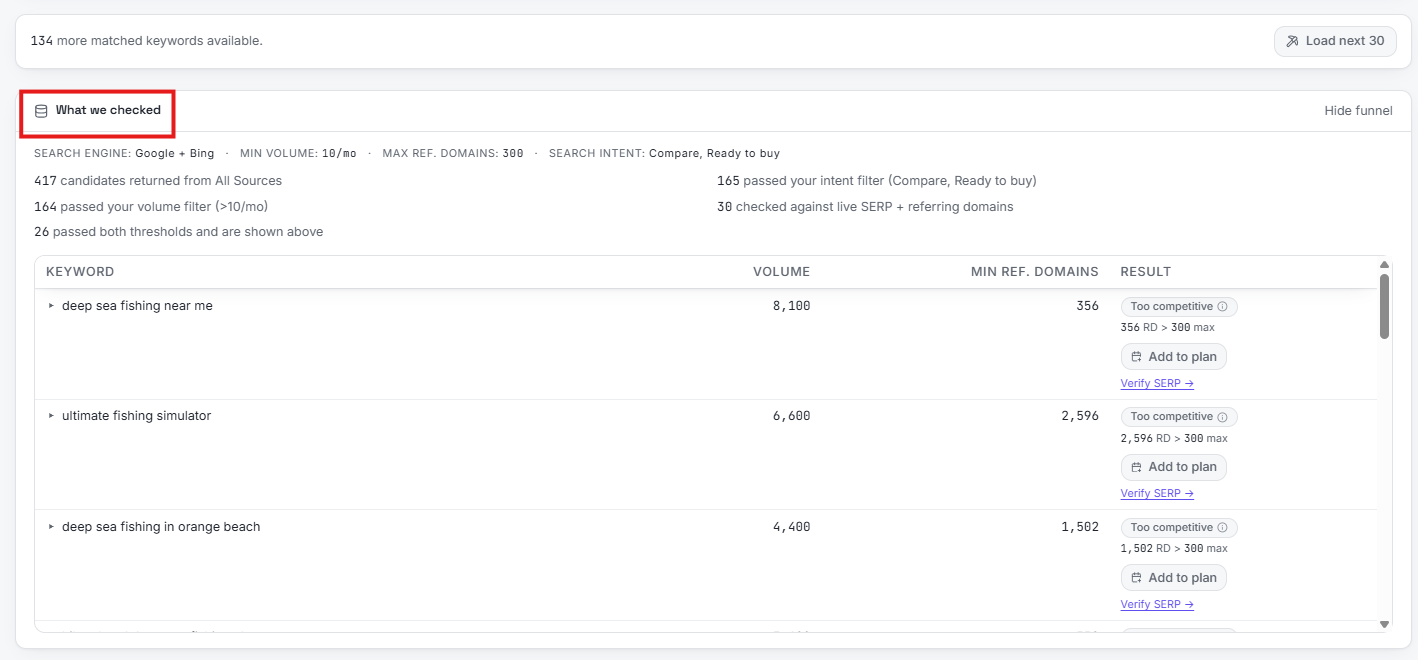
Transparency about exactly what happened to your search. The funnel shows candidates returned from all sources, how many passed the volume filter, how many passed your intent filter, how many were checked against live SERP plus referring domains, and how many passed both thresholds and appear above. The table lists the keywords that did not make it — in this case ranked by volume, each marked "Too competitive" with its referring-domain count against your 300 max — and every one can still be added to a plan or verified manually in the SERP. Load next 30 pages through more of the pool.
- 4
What we checked — expanded SERP detail
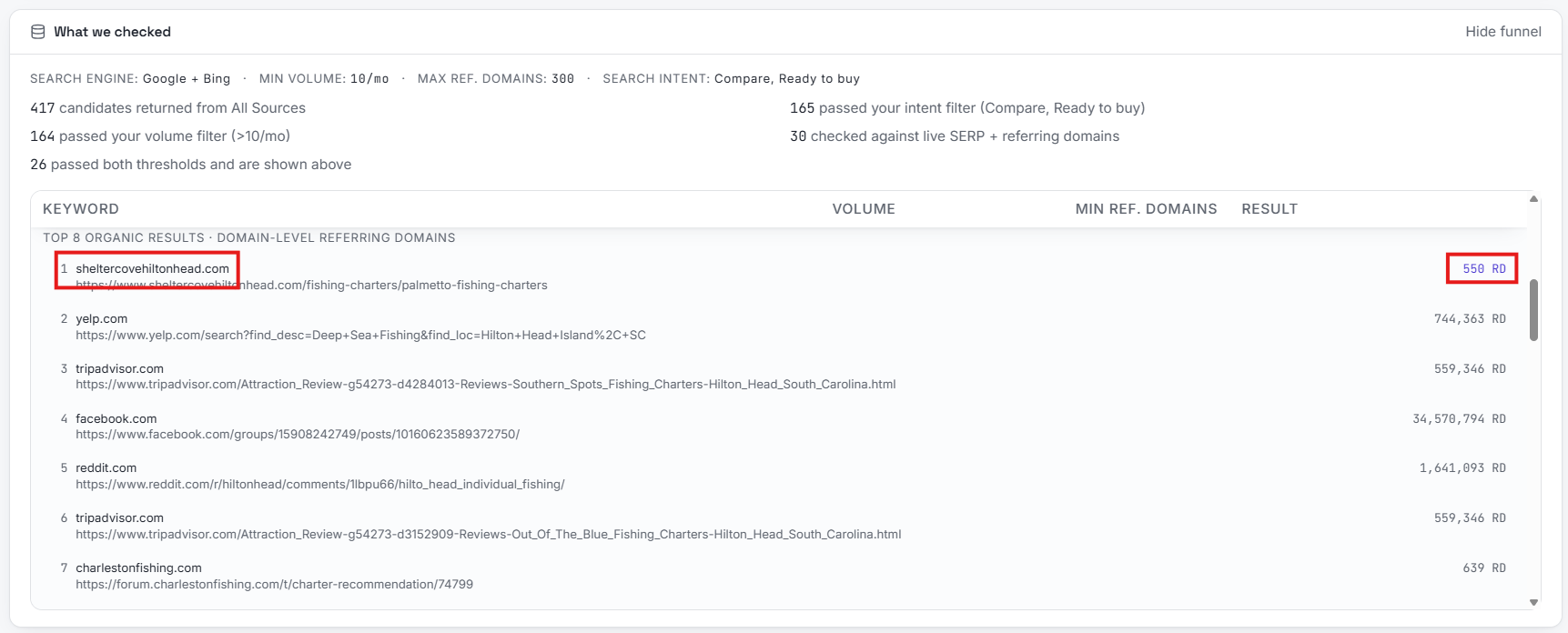
Expand any row to see the actual top-8 organic results with domain-level referring domains. Here the #1 result for the keyword is sheltercovehiltonhead.com with only 550 referring domains — while the sites below it (Yelp, Tripadvisor, Facebook, Reddit) carry hundreds of thousands. That is the moment you can see a vein: a thin, beatable site holding the top spot against heavyweight competition.
- 5
Domain Gap — set up the comparison
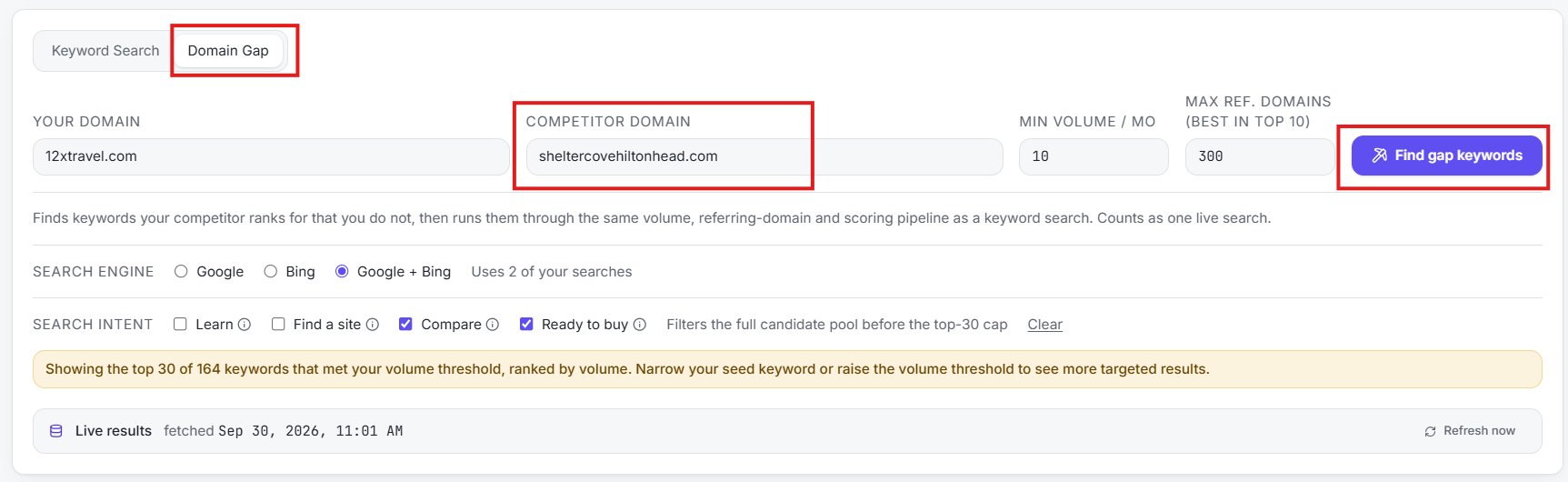
Switch to the Domain Gap tab to spy on a competitor. Enter your domain and a competitor domain — here 12xtravel.com versus sheltercovehiltonhead.com — set your minimum volume and maximum referring domains, and run the gap search. It finds keywords your competitor ranks for that you do not, then runs them through the same volume, referring-domain, and scoring pipeline as a normal keyword search. A Google + Bing run counts as two live searches, and the banner explains how the top-30 of 164 matched keywords was cut.
- 6
Domain Gap — competitor results
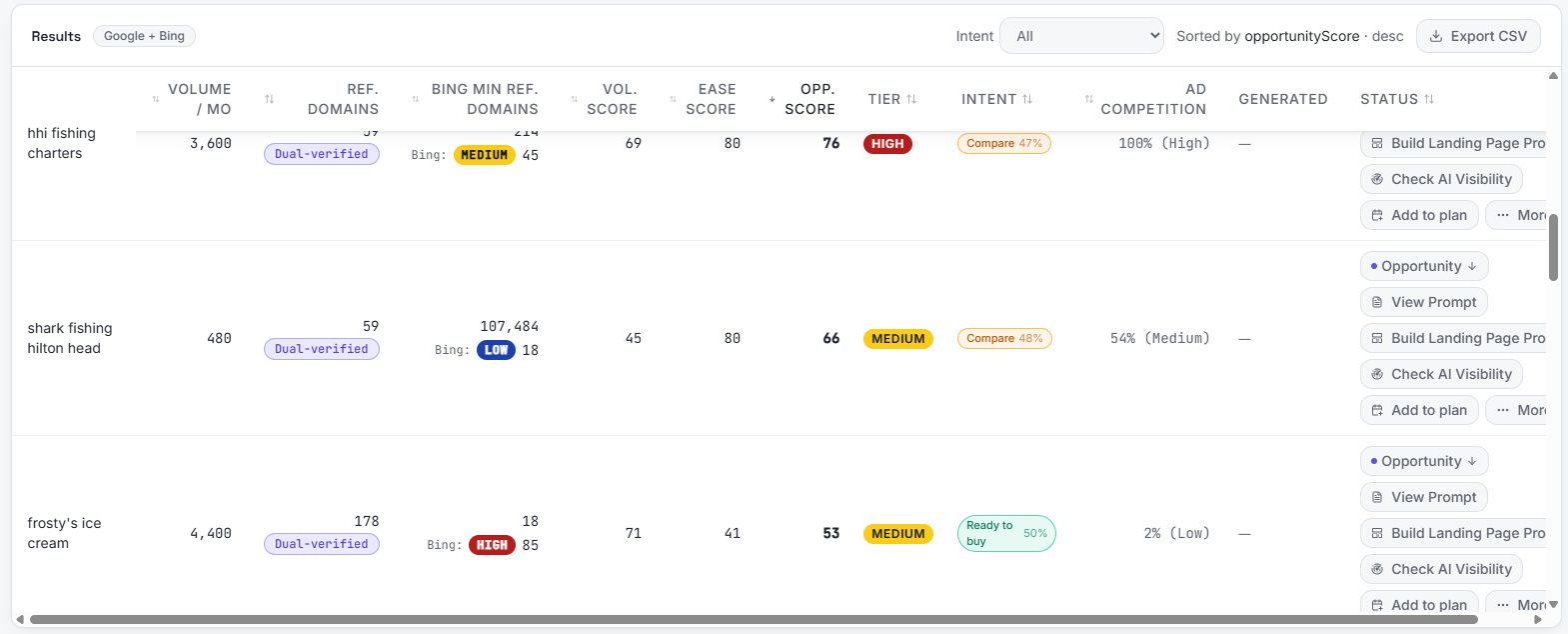
The gap results use the same columns and scoring as a keyword search: volume, referring domains, Bing minimum referring domains, volume score, ease score, opportunity score, tier, intent, and ad competition. Compare-intent keywords show their match percentage, Ready-to-buy keywords get the green badge, and each row offers Build Landing Page, Check AI Visibility, Add to plan, and more — so a competitor's entire rankable surface becomes your to-do list.
- 7
Projects and recent searches
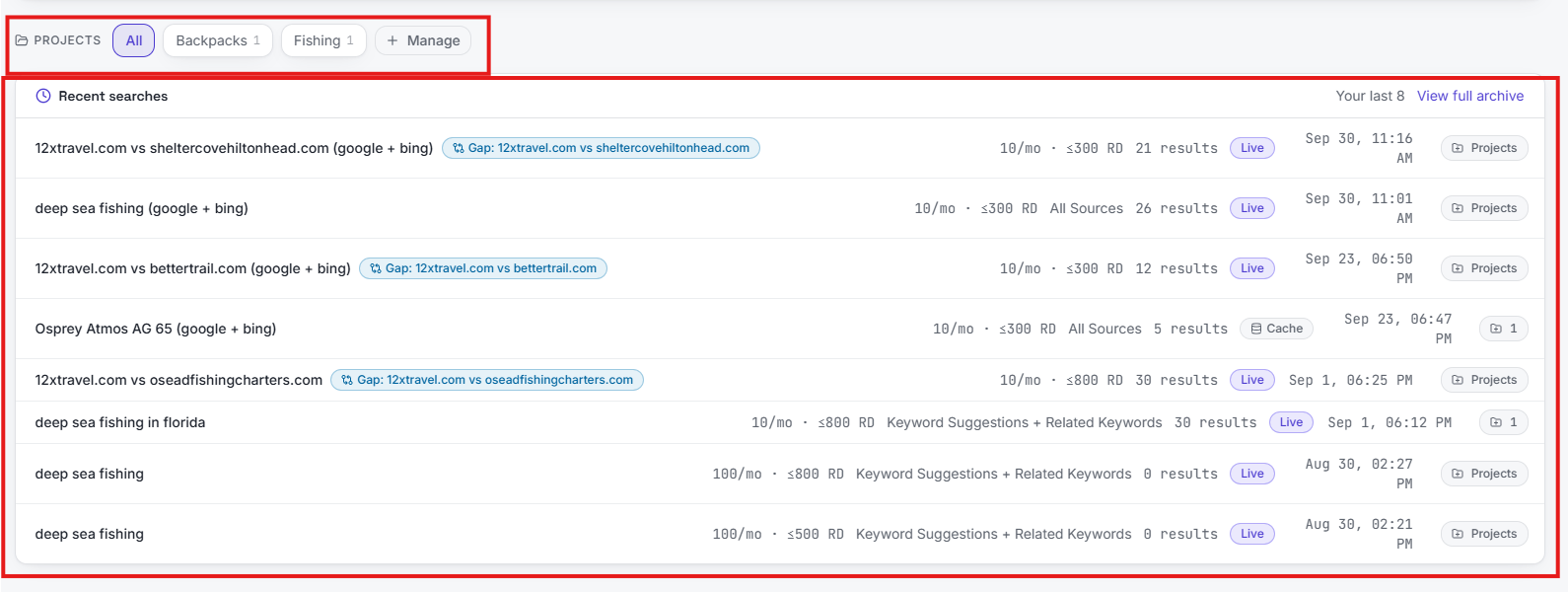
Prospecting runs are organized into projects — here All, Backpacks, and Fishing — with a Manage button for the full list. Below, your recent searches keep everything findable: each row shows the keyword, the engine, any gap comparison, the thresholds used, result count, whether it ran live or from cache, and when. A saved run can be reopened without spending a new search when it is still in the 30-day cache window, and one click files it into a project.
- 8
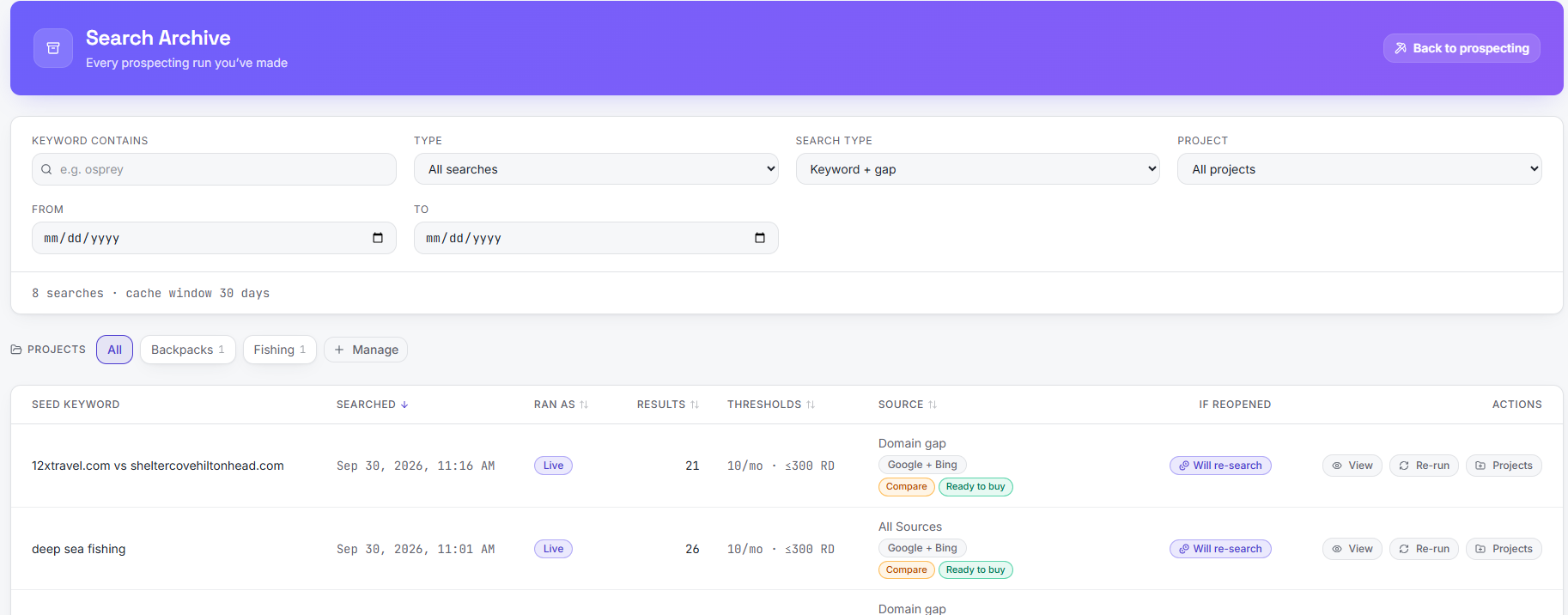
Search Archive — every run you've made
The full archive of every prospecting run, filterable by keyword, type, search type, project, and date range, with the 30-day cache window stated up front. Sortable columns cover when it ran, whether it ran live, how many results it returned, the thresholds used, and its source (domain gap, all sources, keyword suggestions, and so on). If a run is reopened after the cache expires it is flagged "Will re-search" so you know a new search will be spent, and each row can be viewed, re-run, or filed into a project.
- 8.5
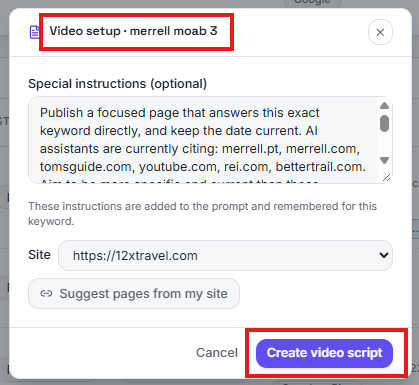
Video setup — special instructions before the script
Every video starts with a quick setup. Give the AI special instructions for this keyword — here a note to publish a focused page that answers the exact keyword directly and keeps the date current, since AI assistants are currently citing merrell.pt, merrell.com, tomsguide.com, youtube.com, rei.com, and bettertrail.com. Instructions are added to the prompt and remembered for this keyword, so you only type them once. Pick which connected site the video targets, click Suggest pages from my site to pull matching page candidates, then Create video script generates the script shown in step 9.21.
- 9
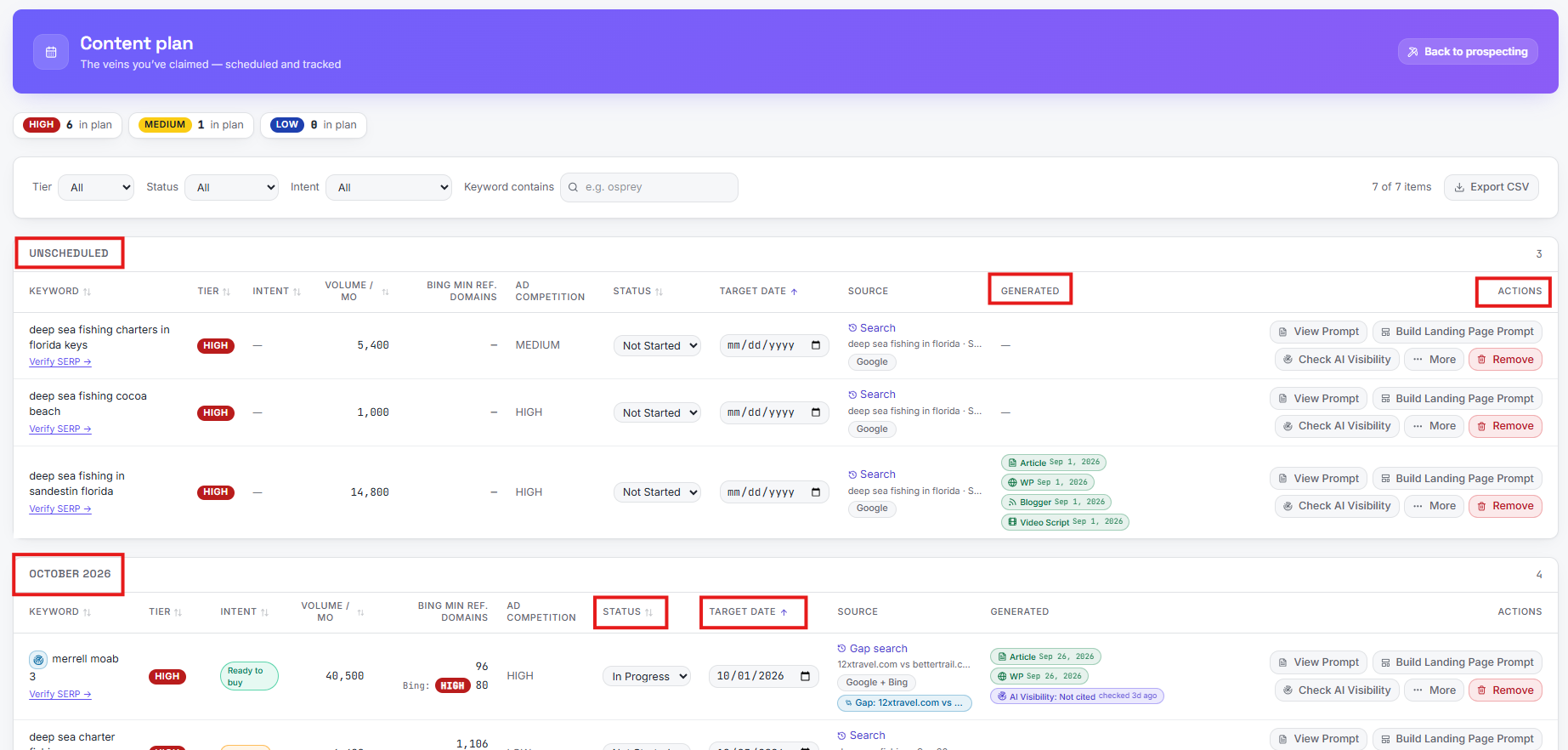
Content Plan — schedule the veins you've claimed
Everything you've added to a plan lives here, grouped into Unscheduled and month sections like October 2026. Filter by tier, status, intent, or keyword; sort by keyword, status, or target date; and export the whole plan to CSV. The Generated column shows exactly what's been produced for each keyword — Article, WordPress, Blogger, and Video Script badges with their dates — while the Actions column carries View Prompt, Build Landing Page Prompt, Check AI Visibility, More (with Generate Article and more behind it), and Remove.
- 9.21
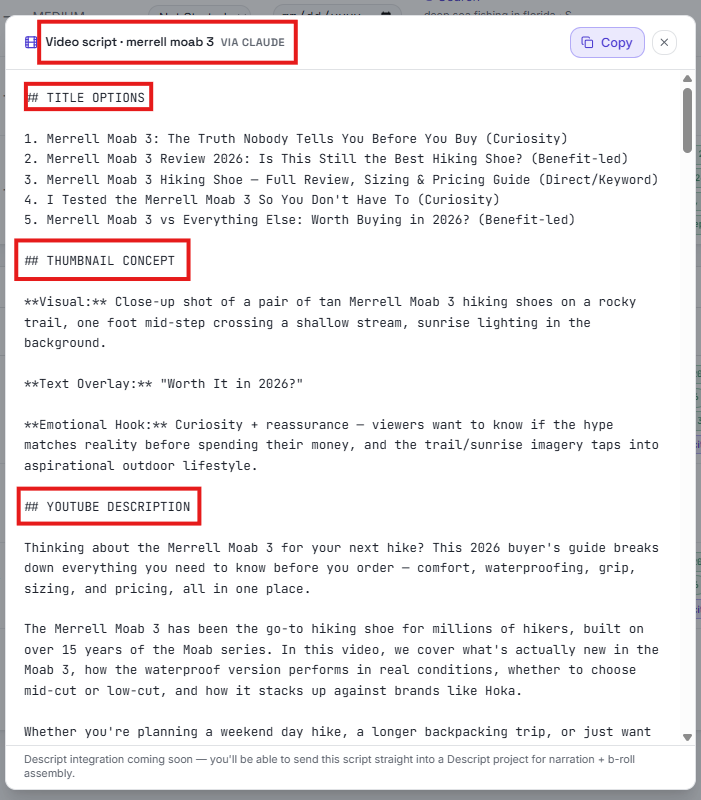
Video script — written like a video, not an article
Generate Article isn't the only output. The video script opens in the same review window, labeled with the keyword (here "merrell moab 3") and the AI that wrote it — via Claude — with a one-click Copy. It opens with several title options built from proven YouTube patterns — curiosity hooks, benefit-led reviews, a direct keyword guide — then a thumbnail concept with a key visual (tan Merrell Moab 3 shoes on a rocky trail, "Worth It in 2026?" as the text overlay) and the emotional hook the thumbnail is designed to trigger. It closes with a full YouTube description that front-loads the search phrase and previews what the video covers, ready to paste when you publish. Descript integration for straight-to-narration assembly is marked as coming soon.
- 10
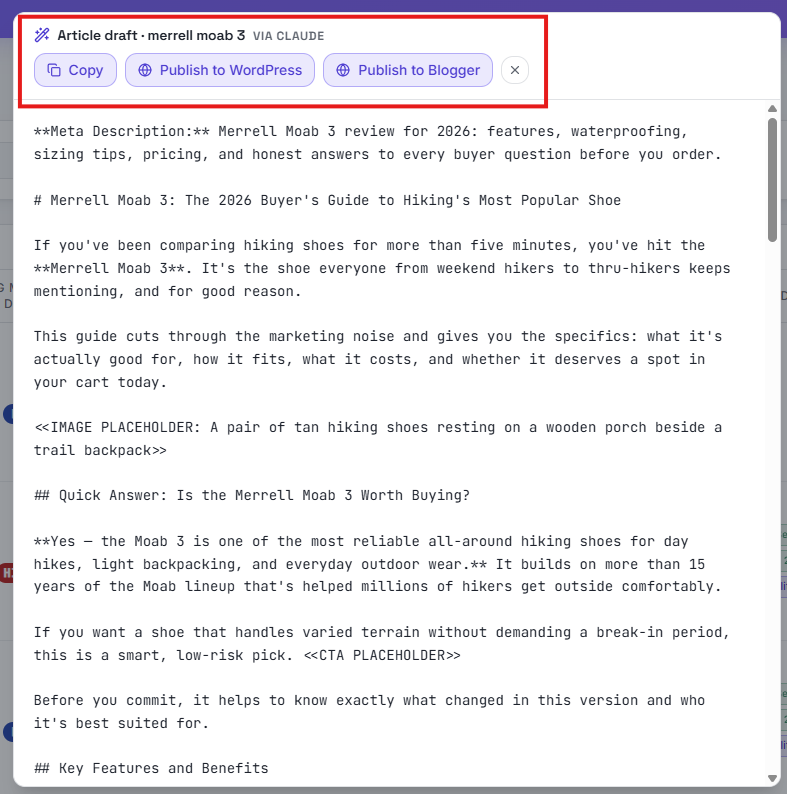
Generated article — publish to WordPress or Blogger
The finished article draft opens in a review window labeled with the keyword and the AI that wrote it (here, via Claude). It already includes a meta description, H1, short scannable paragraphs, bolded key answers, and clearly marked image and call-to-action placeholders. From the header you can copy the full draft or send it straight to WordPress or Blogger in one click.
- 11
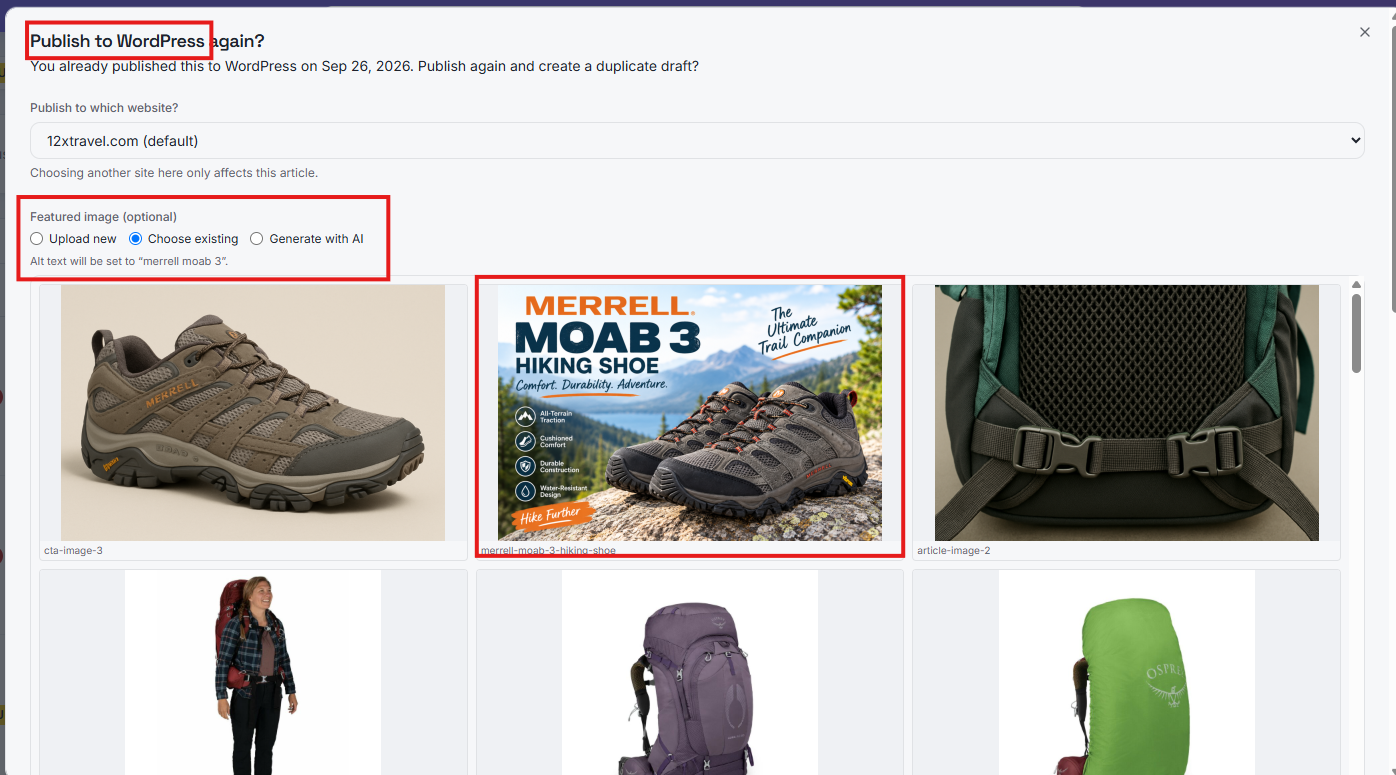
Publish to WordPress — choose a featured image
The WordPress publishing window lets you pick which connected site receives the article, then set a featured image: upload a new one, choose from the site's existing media library, or generate one with AI. Library images display whole, never cropped, so you can see exactly what you're selecting. The featured image's alt text is automatically set to the article's keyword for SEO.
- 12
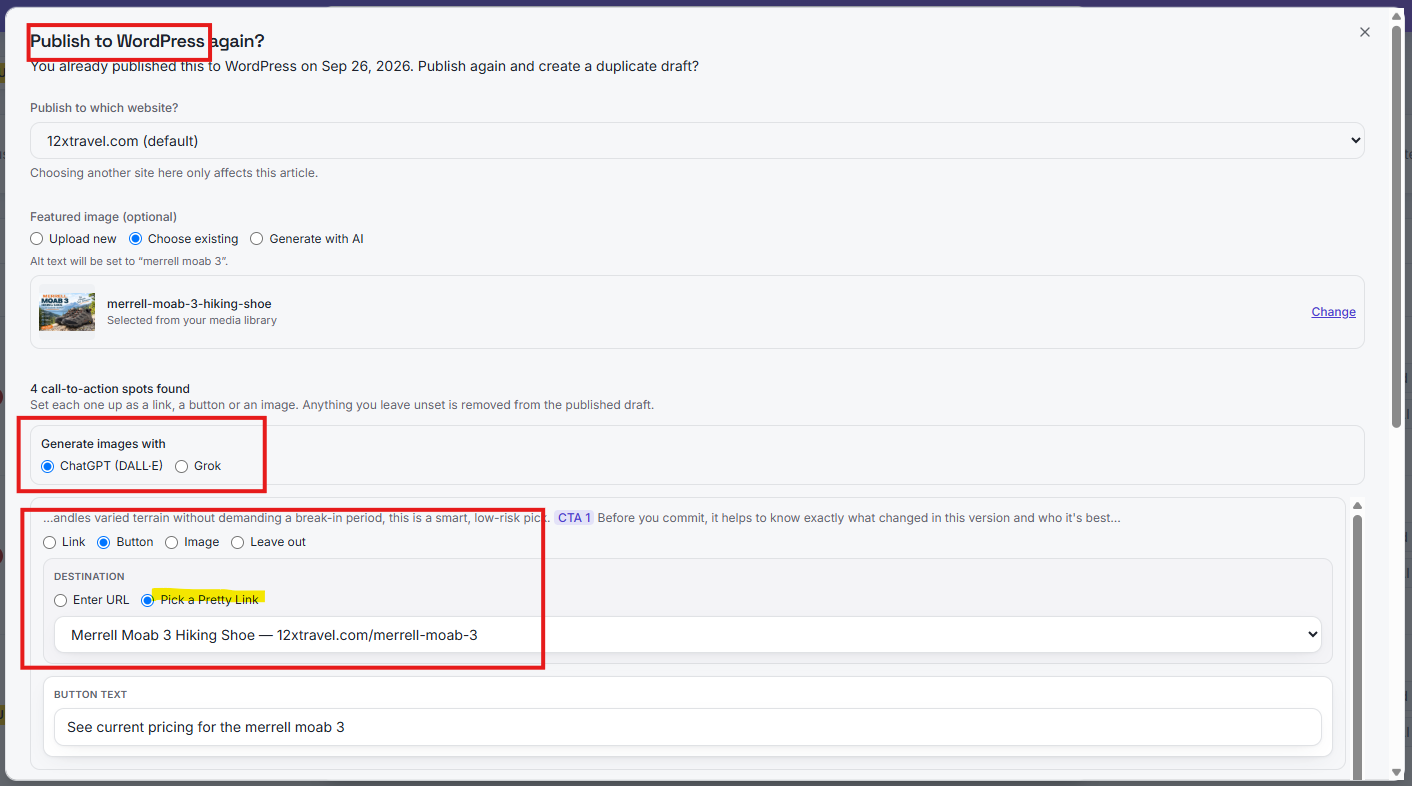
Publish to WordPress — pick a Pretty Link for each CTA
Every call-to-action spot found in the article can become a link, a button, an image, or be left out. For the destination, type a URL or pick straight from your Pretty Links on the selected site — no copying and pasting affiliate links. You set the button text right here, and can choose ChatGPT or Grok for any AI-generated CTA images.
- 13
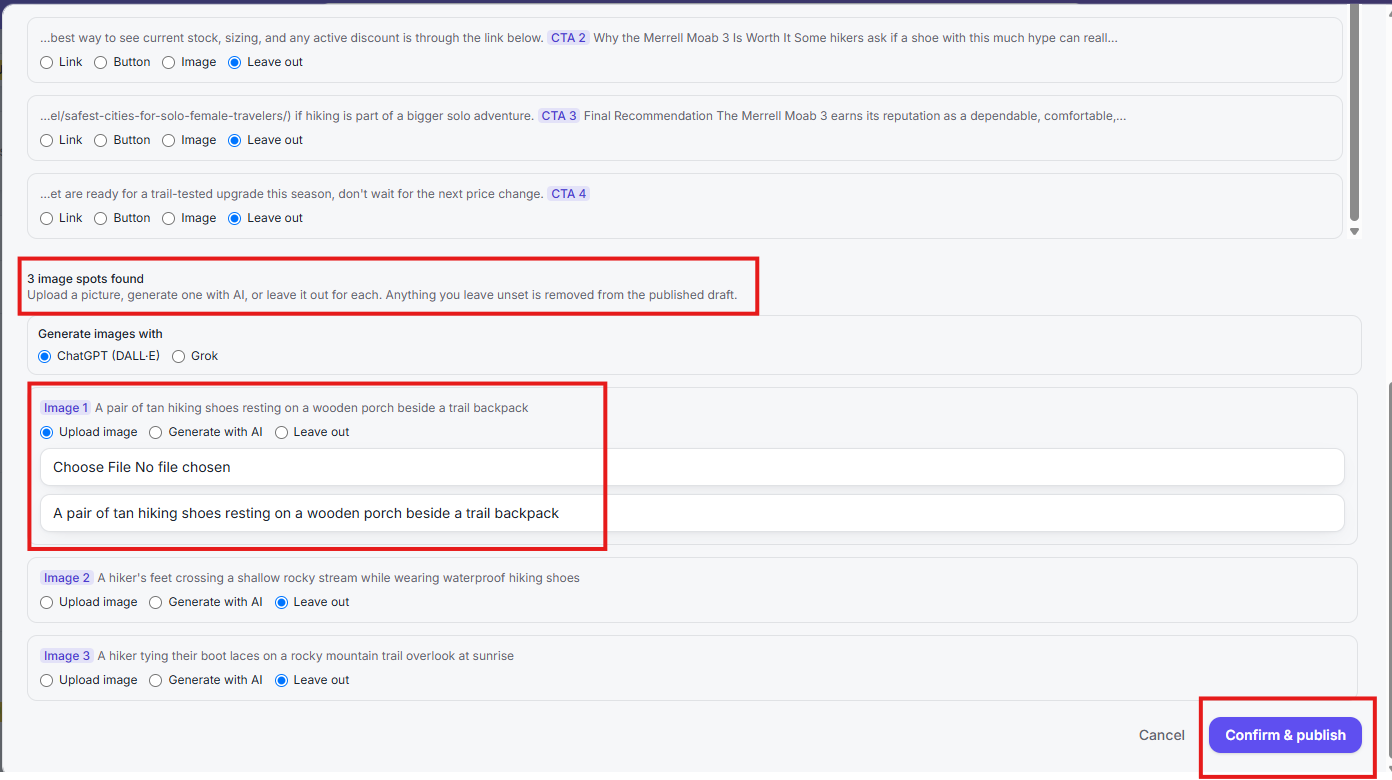
Add images to the article and confirm
The article's image spots are listed with their suggested descriptions. For each one, upload a picture, generate it with AI, or leave it out — anything left unset is removed from the published draft so no placeholder text ever goes live. One click on Confirm & publish sends everything to WordPress.
- 14
The WordPress draft — with featured image
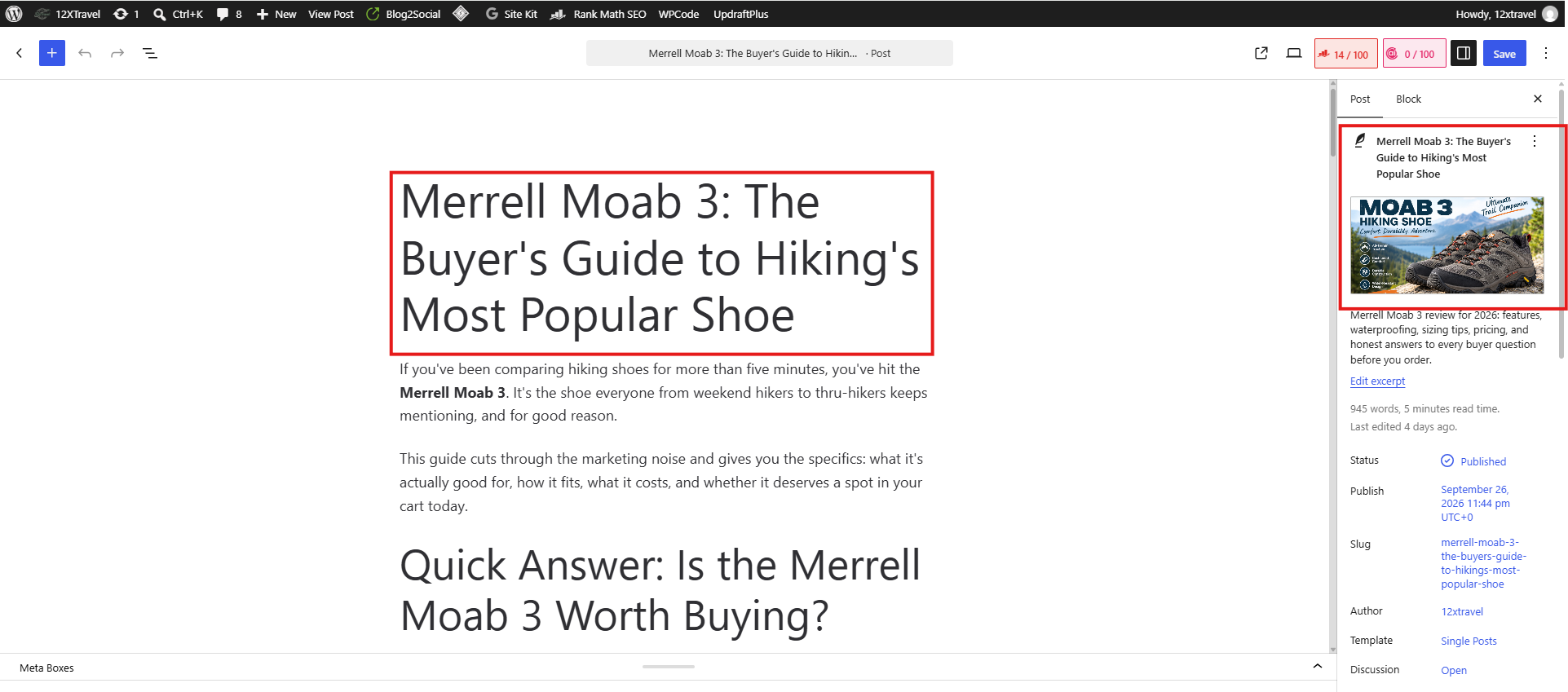
The article lands in WordPress with its title, body, excerpt, slug, and featured image already set. Nothing needs reformatting — the headline, introduction, and section headings arrive exactly as generated.
- 15
Built to be read — bold answers, short paragraphs, button CTAs
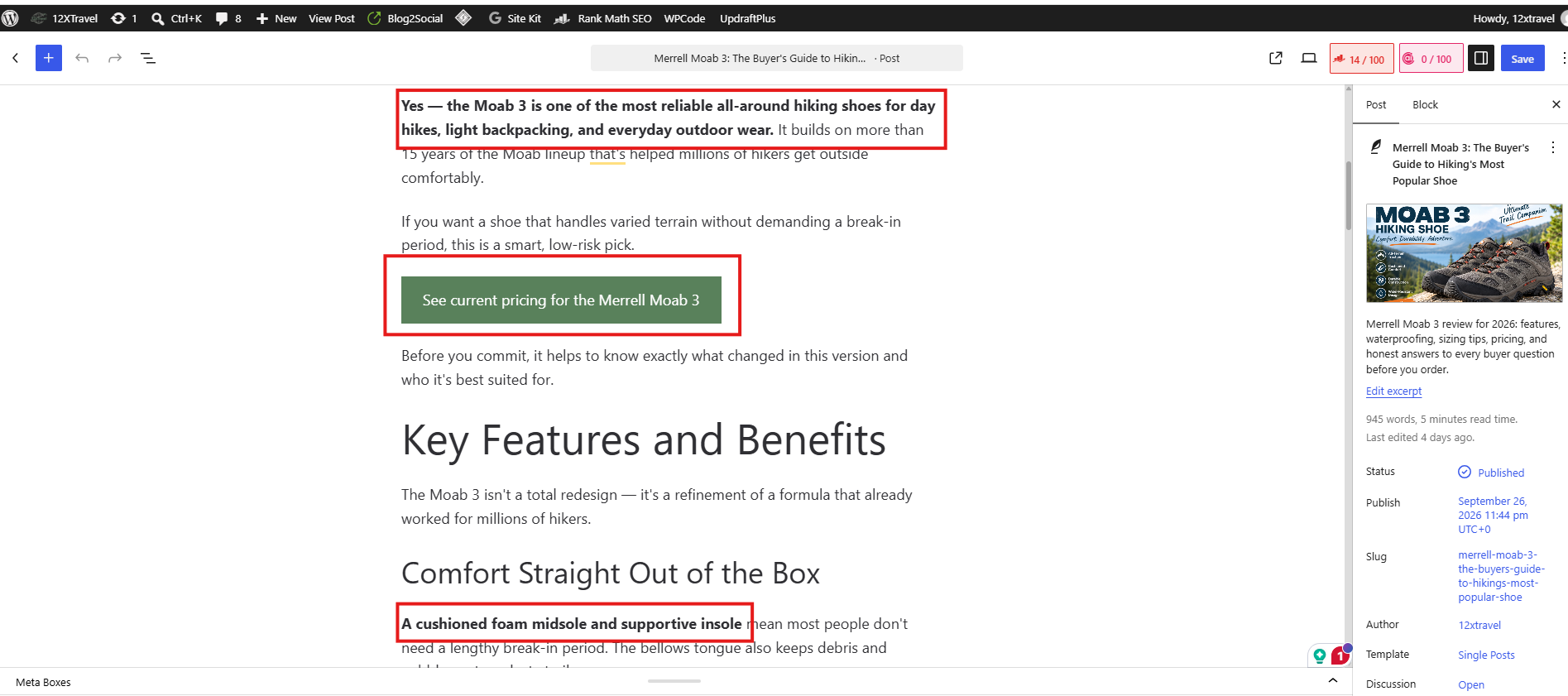
Inside the post, direct answers are bolded up front, paragraphs are kept to one or two sentences for easy scanning, and the call to action appears as a real clickable button pointing at your chosen Pretty Link.
- 16
Check AI visibility
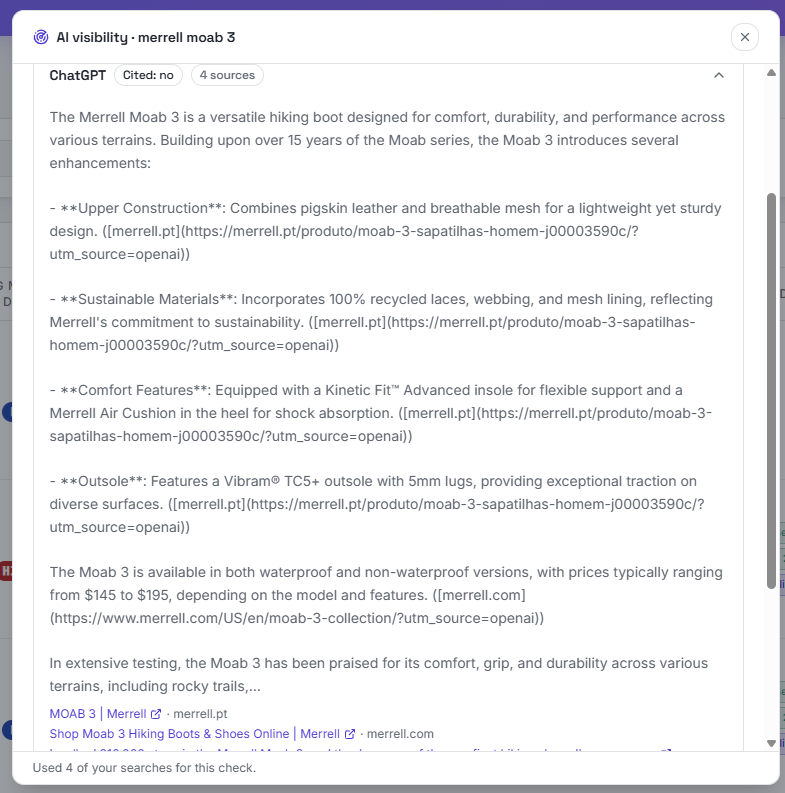
See what AI assistants actually say about a keyword. Each answer — here from ChatGPT — shows whether your site was cited, how many sources were used, the full response text, and the linked sources, so you know who AI is recommending instead of you.
- 17
Track AI visibility over time
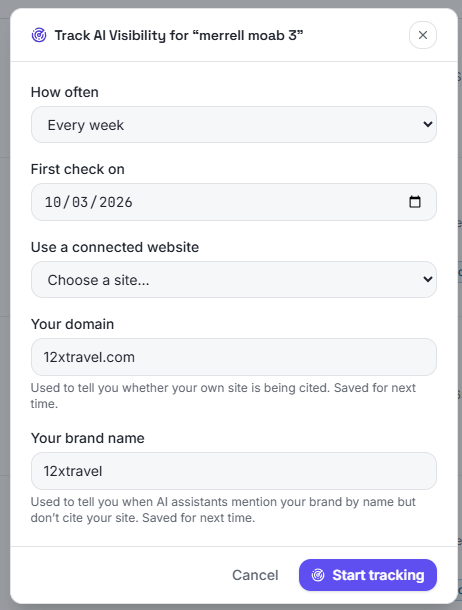
Turn a one-off check into ongoing tracking. Choose how often to check, the first check date, and optionally a connected website. Your domain tells you when your site is cited, and your brand name tells you when AI mentions you without linking. Both are saved for next time.
- 18
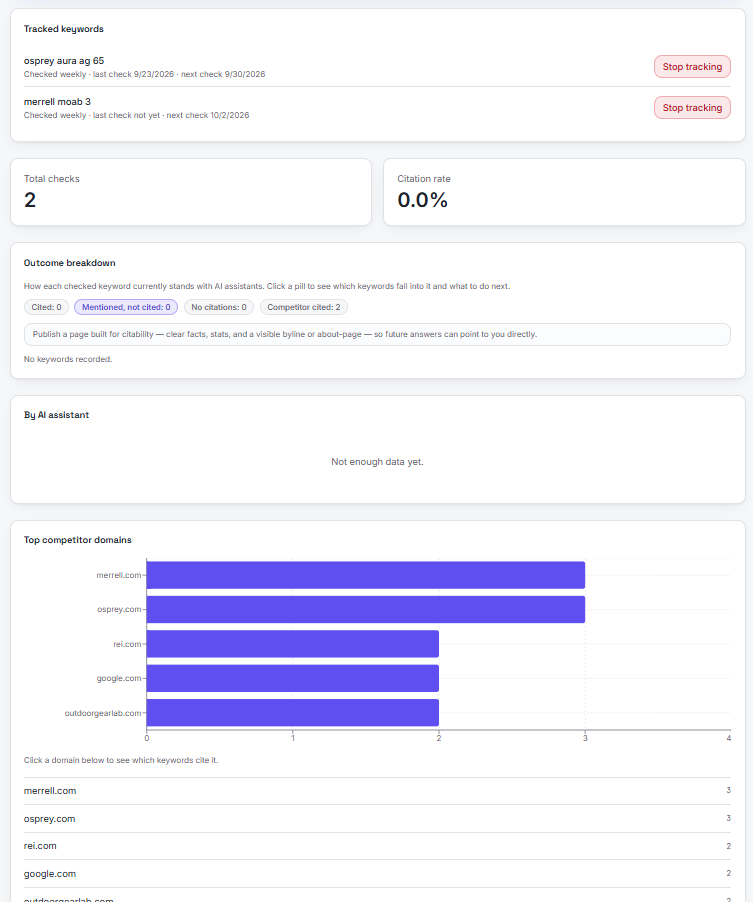
Tracked keywords and results
The tracking dashboard lists every tracked keyword with its last and next check dates, total checks, and citation rate. An outcome breakdown groups keywords into cited, mentioned but not cited, no citations, and competitor cited, with a suggested next step. A chart shows the competitor domains AI cites most — click any one to see which keywords cite it.
- 19
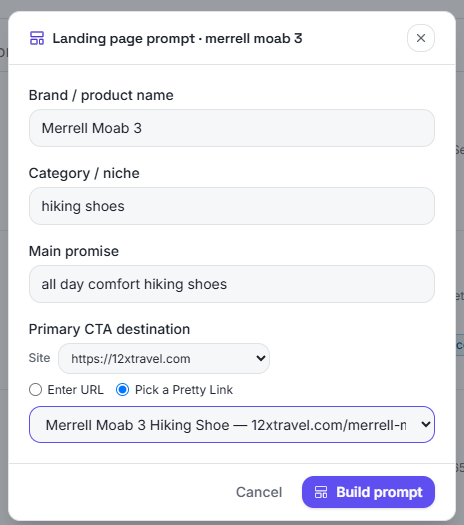
Build a one-page Lovable website
Generate a ready-to-use prompt for a one-page landing site. Enter the brand or product, the niche, and the main promise, then point the main call-to-action button at a URL or pick a Pretty Link from any connected site. Build prompt produces text you can paste into Lovable to create the page.
- 20
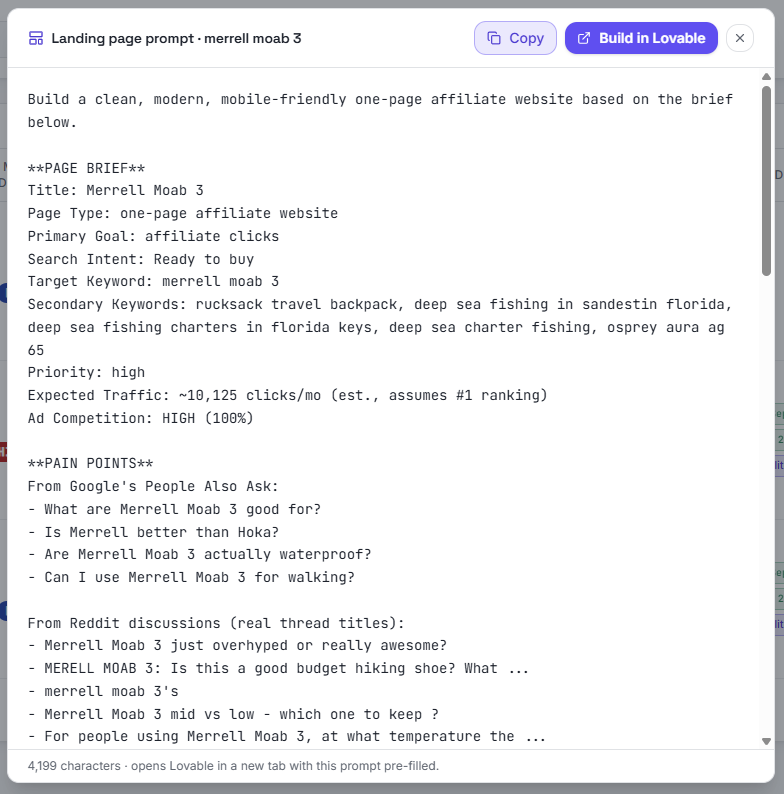
The ready-made Lovable prompt
Build prompt turns your keyword research into a complete page brief: title, page type, goal, search intent, target and secondary keywords, estimated traffic, and ad competition. It also pulls in real buyer pain points from Google's People Also Ask and actual Reddit thread titles. Copy it, or click Build in Lovable to open Lovable in a new tab with the prompt already filled in.
- 21
The finished one-page site, built in Lovable
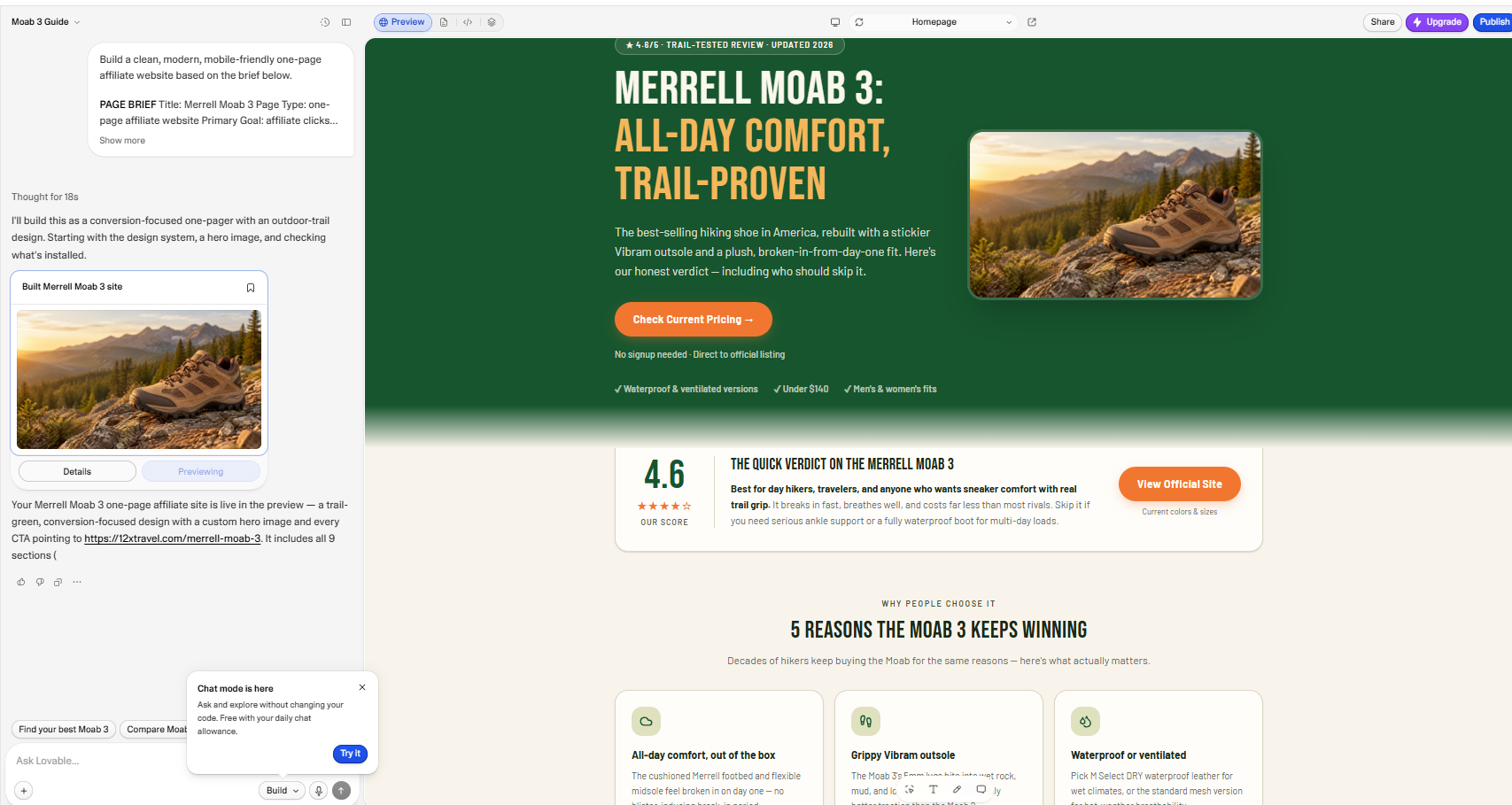
Paste the landing-page prompt into Lovable and it builds the whole site: a bold headline, a custom hero image, a quick-verdict score card, a list of reasons buyers choose the product, and call-to-action buttons all pointing at your chosen Pretty Link. It goes from keyword to a live, conversion-focused affiliate page in minutes.