
Publish AI-Written Articles to Blogger as Ready-to-Review Drafts
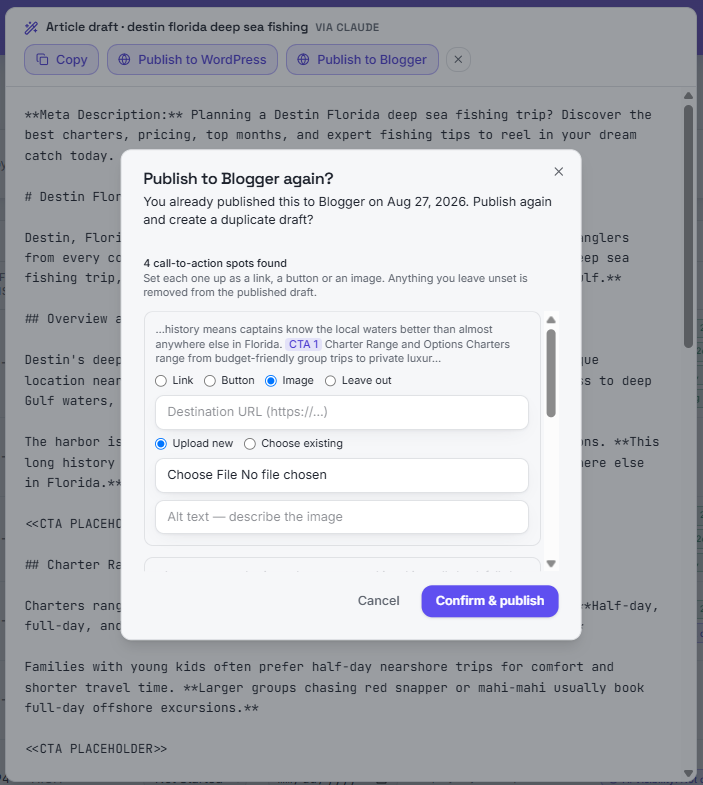
Blogger is still a fast, free way to put content in front of searchers — but copying an AI draft into the editor, fixing the formatting and wiring up every affiliate link by hand eats the time you saved by not writing it yourself. SEO Vein Finder sends the article straight to your blog as a draft, with each call-to-action already set the way you want it.
How the Blogger flow works
Step 1.Connect Blogger with your Google account
Step 2.Generate the article for a keyword you can win
Step 3.Set each call-to-action spot
Step 4.Confirm and review in Blogger
What lands in Blogger
- A draft post on the blog you selected — never published without you.
- The title and formatted body, with headings, bold answers and short paragraphs intact.
- Working links and buttons pointing at the destinations you chose.
- Images hosted on your connected WordPress site, when you have one.
- The meta description, plus FAQ schema when the article has an FAQ section.
The Content Plan's Generated column records a Blogger badge with the date, so you can see at a glance which keywords are already drafted on your blog.
Frequently asked questions
How do I connect my Blogger blog?
In AI Settings, connect Blogger through your Google account and pick the blog articles should go to. There is one blog per connected account, with reconnect, refresh, test and disconnect controls if anything changes.
Does the article go live on my blog right away?
No. Articles arrive in Blogger as drafts, so you review them and publish from Blogger yourself. If you send the same article again, the tool warns you first that it will create a duplicate draft.
Can I use images in Blogger posts?
Yes, with one requirement. Blogger posts only link to images, so image CTAs and in-article images are hosted in the media library of a connected WordPress site. Without a connected WordPress site those image spots are left empty and the publish window tells you so; link and button CTAs work either way.
Can I use my Pretty Links in Blogger posts?
Yes. If you have a WordPress site connected with the Pretty Links bridge plugin, the Blogger publish window can pull Pretty Links from that site for your call-to-action destinations. You can always type any URL instead.
What SEO details are included?
The title, the formatted body and the article's meta description are sent with the draft, and FAQ schema is added when the article has an FAQ section. The article itself is written by your own connected AI provider — Claude, ChatGPT or Grok.
Which plan includes Blogger publishing, and can I try it first?
Article generation and Blogger publishing are included from the Starter plan. The Content Plan demo lets you generate a sample article and open the Publish to Blogger window on sample data, with no signup; the final publish step asks you to create an account.
See the Blogger flow on sample data first: open the Content Plan demo, generate a sample article and click Publish to Blogger — no signup needed.