
Publish AI-Written Articles to WordPress — Featured Image, CTAs and Images in One Step
Finding a keyword you can win is only half the job — the article still has to reach your site. SEO Vein Finder closes that gap. Once a keyword is in your Content Plan, you generate the article with your own AI key and send it to WordPress as a ready-to-review draft, with the featured image, call-to-action buttons and in-article images already in place.
How the WordPress flow works
Step 1.Connect your site once
Step 2.Generate the article from your Content Plan
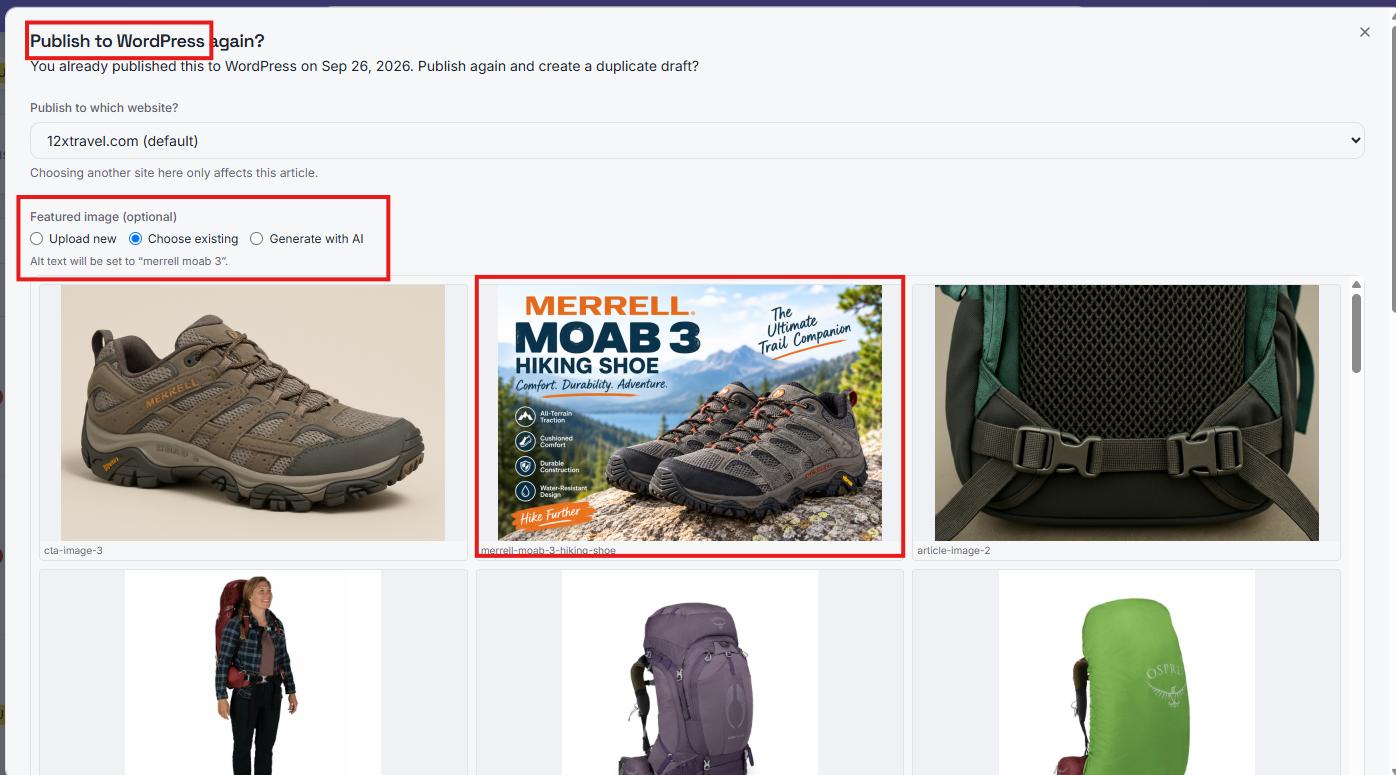
Step 3.Set the featured image
Step 4.Turn every CTA spot into a link, button or image
Step 5.Fill the image spots and confirm
What lands in WordPress
- A draft post — never published live without you.
- The title and body formatted for the WordPress editor, with headings, bold answers and one-to-two-sentence paragraphs intact.
- Your featured image, with the keyword as its alt text.
- Real clickable CTA buttons and links pointing at the destinations you chose.
- The meta description as the excerpt, plus FAQ schema when the article has an FAQ section.
Back in SEO Vein Finder, the Content Plan's Generated column records a WordPress badge with the date, so you always know which keywords already have a draft on your site.
Frequently asked questions
Does SEO Vein Finder publish the post live on my site?
No. Every article arrives in WordPress as a draft, so nothing goes live until you review it and click Publish in WordPress yourself. If you send the same article again, the tool warns you first that it will create a second draft.
What do I need to connect my WordPress site?
Your WordPress username and an Application Password, a feature built into WordPress since version 5.6 (Users → Profile → Application Passwords). Paste it exactly as WordPress shows it in AI Settings; it is stored encrypted. You can connect more than one site and choose which one receives each article.
Do I need the Pretty Links plugin?
No. You can type any destination URL for a call-to-action. If you use Pretty Links, the free bridge plugin from AI Settings lets you pick your existing Pretty Links straight from the publish window instead of copying and pasting them.
Which AI writes the article and makes the images?
The article is written by whichever provider you connect with your own API key: Claude, ChatGPT or Grok. AI-generated featured images, CTA images and in-article images use ChatGPT or Grok, because Claude does not generate images. You can also upload your own pictures or reuse images already in your WordPress media library.
What SEO details are sent with the draft?
The title, the formatted body, the featured image with its alt text set to the article's keyword, and the article's meta description as the post excerpt. The meta description is also sent to the Yoast and Rank Math description fields, which only save it if your SEO plugin accepts that field through the WordPress REST API. If the article has an FAQ section, FAQ schema is added to the post.
Which plan includes WordPress publishing, and can I try it first?
Article generation and WordPress publishing are included from the Starter plan. The Content Plan demo shows the whole flow on sample data, with no signup: generate a sample article and open the Publish to WordPress window. The final publish step asks you to create an account.
Want to see it before connecting your site? Open the Content Plan demo — generate a sample article and step through the Publish to WordPress window with no signup.